Tune what your reviewers see first: Qodo Advanced Configurations

Qodo recently introduced a set of configurations for tuning code review to your team’s workflow: when reviews run, which standards apply, how much of each finding a developer sees, and which repositories get stricter treatment. In our most recent release we went further. Advanced configurations give teams control over the review comment itself, down to how findings are grouped, ordered, labeled, and published.
Before building any of this, we ran research sessions with teams across every Git provider we support, and what came back was variance.
Take one narrow question, whether findings belong inline in the diff or in a summary comment. Some teams want inline, some want summary, some want both, and for some it depends on the PR. Every dimension we looked at came back the same way. Which means a fixed layout, however carefully designed, fits some teams and reads as noise to the rest.
So we stopped trying to pick the one right layout. How the review comment is displayed and organized is now yours to decide.
What you can configure
A Qodo review comment is built from parts: the groups findings are sorted into, the labels and counts attached to them, and how much detail sits inside a single finding. Each of those parts is a setting.
You choose what the findings are grouped by: severity, the type of issue, its category, or how relevant it is to this particular change. You sort within each group by something different if you want. You keep the groups that matter expanded and collapse the rest, publish one group inline in the diff while another stays in the summary, and call severity whatever your organization already calls it.
None of this changes what Qodo finds. It changes what a reviewer sees first, and on a large PR that is the difference between a finding that gets fixed and one that gets scrolled past.
The Configurations screen
Everything below lives on the Configurations screen in the Qodo portal, organized into five tabs. Each one answers a different question about how review behaves.
| Tab | The question it answers |
|---|---|
| Display | How should the review comment look? |
| Workflow | When and how do reviews run? |
| Context | What does the review know? |
| Remediation | What happens after something is found? |
| Prompts | What org-specific instructions do the agents get? |
Settings apply at the organization level, with repository-level overrides.
Display: the settings, one group at a time
The Display tab governs how findings are presented in the pull request: how they are counted, labeled, grouped, ordered, truncated, and routed into comments. The review itself is identical either way. What these settings decide is how much of it surfaces up front and how much sits one click away.
These settings only affect what developers see in the PR. Every finding Qodo surfaces is recorded in the Qodo portal regardless of how it renders, so engineering leaders keep a complete history for reporting, governance, and trend analysis even when a finding is collapsed or hidden from the pull request itself.
Grouping: pick the dimension that matches how your team reads a PR
Group by sets the dimension Qodo uses to organize findings inside the summary comment. The options are Severity (default), Finding type, Finding category, and Relevance.
Severity is a common choice, but it is not the only workflow we saw. Plenty of teams work by type instead: fix the bugs first, deal with rule violations after, and treat the rest as nice-to-have. For them, grouping by type puts the review in the order they were going to work through it anyway.
If you group by severity, you also choose what the three severity tiers are called. Severity vocabulary drew more disagreement in research than anything else on the tab, because the label is doing a job: it decides whether a developer acts on the finding or scrolls past it. What drives action in one organization gets skimmed past in another.
- High, Medium, Low (the default) if you want to stay simple and unambiguous
- Critical, Warning, Informational if your team is security-driven, since it matches the vocabulary of the tools and advisories they already read
- Required, Recommended, Optional if you would rather frame each finding as guidance than as a priority level
- P0, P1, P2 if you are in a larger or more process-driven organization where priority levels are already the shared language
One policy is fixed and not configurable: the highest severity findings, no matter the label, can never be dropped from the PR. That holds whichever dimension you group by, so no display choice can suppress them.
Ordering: the sequence within each group
Grouping puts related findings together. Order by decides which one a developer reads first inside each group. Group by type so a developer works through all the bugs in one pass, then order by severity so the worst bug sits at the top of that pass rather than an arbitrary one.
Relevance is the default. It ranks each finding using your PR history: Qodo looks at findings from previous reviews and works out how much this one matters in light of them. Type and category sort alphabetically.
Always show new findings first (default Enable) pins findings from the latest review run to the top of their group, overriding the sort. Every push to a PR triggers a new review that can produce new findings, and those carry a New label. On a PR that gets ten pushes, this is the difference between rereading the same review and seeing what just changed.
The two work together: new findings first, then your chosen sort within each block. A reviewer returning to an active PR needs both answers at once, what has changed since they last looked and what matters most among it. A single sort key gives only one of them.
Overflow: truncation that respects structure
On a PR with a lot of findings, keeping every one of them expanded quickly becomes noisy. Where that breakpoint sits was one of the clearest patterns in research: teams want their high-severity findings fully exposed, their low-severity findings collapsed, and something in between for medium. A single global count cannot express that. A breakpoint per group can.
Findings visible per group sets how many findings stay expanded in each group before the rest collapse: None, 1, 3 (default), 5, or All. It is set separately per group, so the groups that matter most to your team stay fully expanded while the rest collapse out of the way.
Finding content: how much of each finding renders
A finding is more than a one-line comment. Each one explains the problem, points at the code responsible, recommends a fix, shows the evidence behind the call, and offers a prompt you can hand to a coding agent.
Finding content sections sets each of those blocks to Hidden, Collapsed, or Expanded.
| Section | What it holds | Default |
|---|---|---|
| Description | What the problem is | Expanded |
| Code | The offending snippet | Collapsed |
| Relevance | The suggested fix and why it matters | Collapsed |
| Evidence | How Qodo verified it, with repro, file, and line | Collapsed |
| Agent prompt | Which agent flagged it and on what basis | Collapsed |
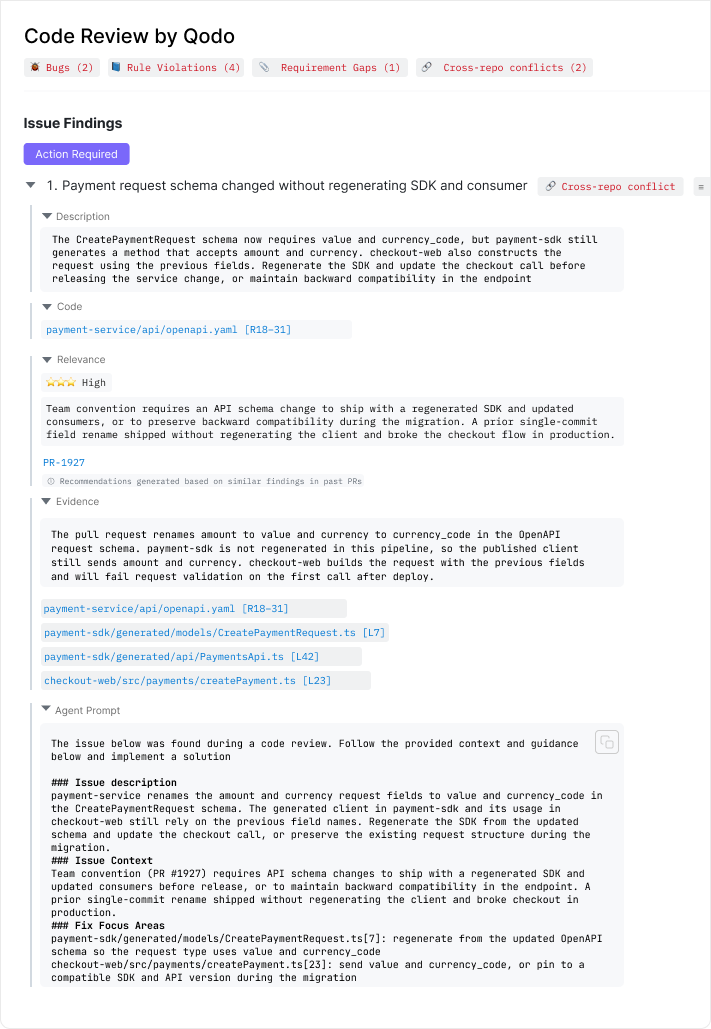
Set to Hidden, a finding can be reduced to a description plus a remediation prompt. Set to Collapsed, the content stays available behind a toggle.
Comments: where findings get posted
Where a finding is posted changes how likely it is to be acted on. An inline comment lands in the diff, next to the line it concerns, while the developer is already reading that code. A summary comment collects everything in one place, so a reviewer can take in the whole review at once and the diff stays clean. That trade-off was the question teams disagreed on most, which is why all three options exist.
Comment type routes findings to Inline only, Summary only, or Summary & Inline (default).
Inline comment severity threshold sets the minimum severity a finding needs to be posted inline: High (default), Medium, or Low. Anything below it still appears in the summary.
Advanced comment routing overrides goes finer than that. Set the routing preset to Custom and a matrix appears, one row per group, and each row can go to Inline, Summary, Both, or Drop on its own.
Drop keeps a group out of the PR comment entirely. The highest severity findings are exempt and always publish. Dropped findings are still recorded in the portal, and the comment footer shows how many were dropped, so nothing leaves the PR without a trace.
Where to start
Users sit on a scale. Some want to turn every knob until the review is exactly right. Some want something good out of the box and no decisions at all. Most are in the middle and want to make one or two choices.
Wherever you sit on that scale, it is easier to begin with a whole combination than to set each option cold. Three to start from:
Compact. Group by Severity. Findings visible per group set to All for High, 1 for Medium, None for Low, which is the pattern that came up most often in research. Finding content reduced to Description expanded and everything else Hidden. Inline threshold at High. The result is a short comment that puts every High finding and one Medium in front of the reviewer and records the rest.
Expanded. Group by Finding category. All findings visible per group. Description and Relevance expanded, Code and Evidence collapsed. Comment type Summary & Inline with the inline threshold at Medium. The result is a comment a senior engineer can audit end to end without leaving the PR.
Risk-forward. Group by whichever dimension isolates the findings your team treats as blocking. Use the routing matrix to send that group to Both and route lower-value groups to Summary only. Set severity terminology to Critical, Warning, Informational if that matches how your organization already talks about risk.
Start from whichever is closest to how your team already reads a PR, then adjust one setting at a time. The live preview shows you the result before you save, so this is a matter of minutes rather than trial-and-error across real pull requests.
Availability
Advanced configurations are in Public Preview for all customers, opt-in, on GitHub, GitLab, and Azure DevOps. Configuring display preferences is available to organization admins by default and extendable to Team Owners and Members through Grant edit permissions. Repository-level overrides are available for individual teams.
Full reference documentation: Portal configuration
Qodo is the AI Code Quality and Governance Platform, the layer between AI coding tools and production. Qodo gives developers and reviewers high-precision code review across the SDLC, and gives engineering leaders centralized governance to maintain quality, standards, and oversight at AI velocity.
About the author